Key Takeaways
- Your mobile data usually isn’t “disappearing” – apps are using it in the background
- iPhone and Android both show exactly which apps consume the most data
- Streaming, social media, cloud backups, and system services are the biggest culprits
- You can limit or completely stop data usage per app
- Knowing this helps you save data, battery, and money
Why Apps Use So Much Mobile Data
If you’re constantly hitting your data limit, apps are almost always the reason. Many apps keep syncing, refreshing, and streaming even when you’re not actively using them.
Common data-hungry activities include:
- Video streaming (YouTube, TikTok, Netflix)
- Social media auto-play
- Cloud backups and syncing
- App updates running on mobile data
- Location tracking and background refresh
The good news? Both iPhone and Android make it easy to see exactly what’s happening, if you know where to look.
How to See App Data Usage on iPhone
(iPhone & iPad – iOS)
- Open Settings
- Tap Cellular (or Mobile Data in some regions)
- Scroll down to Cellular Data
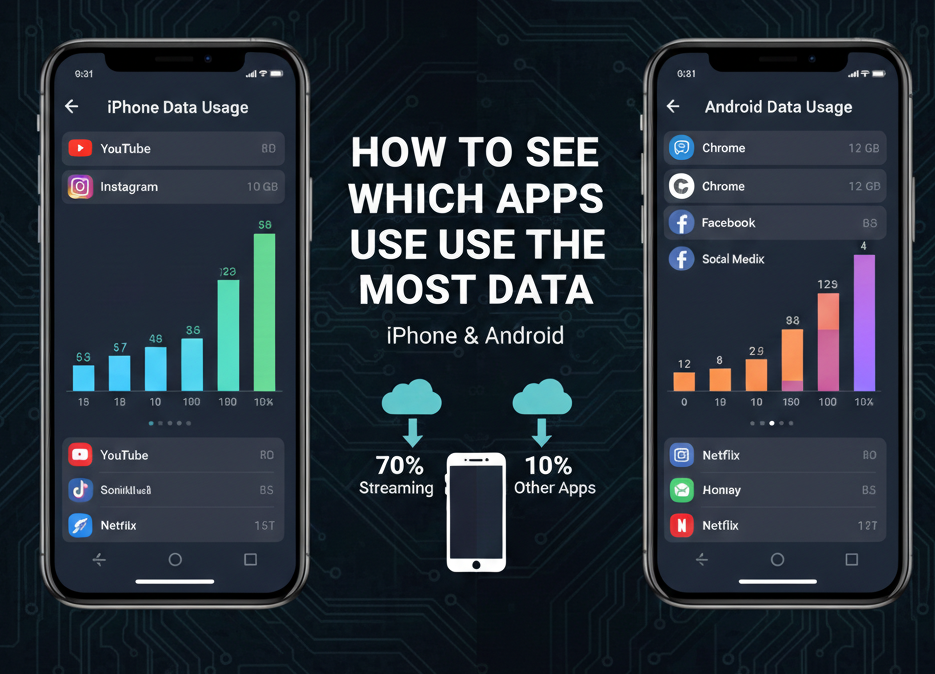
You’ll see a full list of apps, ordered by how much mobile data they’ve used.
- Apps at the top = biggest data users
- Numbers shown = data used since last reset
Pro Tip
Scroll all the way down and tap Reset Statistics.
This lets you track data usage from today onward > very useful if you’re troubleshooting.
System Services on iPhone
At the bottom of the list, tap System Services.
This shows data used by:
- iCloud
- Push notifications
- Software updates
- Location services
If system data is unusually high, iCloud backups or updates are usually the cause.
How to See App Data Usage on Android
(Exact steps may vary slightly by brand)
- Open Settings
- Tap Network & Internet or Connections
- Select Data usage
- Tap Mobile data usage or App data usage
You’ll see apps ranked by data consumption, just like on iPhone.
- Tap any app to see foreground vs background data
- You can view usage for a specific time period
Samsung Users (One UI)
- Settings → Connections → Data usage → Mobile data usage
Samsung also lets you limit background data per app directly from this screen.
Which Apps Usually Use the Most Data
Across most devices, the same types of apps show up at the top:
- Streaming apps (YouTube, Netflix, Prime Video)
- Social media (Instagram, TikTok, Facebook)
- Cloud storage (Google Drive, iCloud, OneDrive)
- Online games
- Navigation apps (Google Maps, Waze)
If one of these surprises you, it’s worth checking its settings.
How to Reduce App Data Usage (Quick Wins)
On iPhone
- Turn off Cellular Data for specific apps
Settings → Cellular → toggle app off - Disable Background App Refresh
Settings → General → Background App Refresh - Set App Store downloads to Wi-Fi only
On Android
- Restrict background data per app
- Enable Data Saver mode
- Disable auto-updates on mobile data
- Limit video quality inside streaming apps
These changes alone can cut data usage dramatically.
Apps Using Data Even When You Don’t Use Them?
This usually happens because:
- Background refresh is enabled
- Cloud syncing runs continuously
- Push notifications trigger data use
- Location tracking stays active
If an app seems excessive, either restrict it or uninstall it.
Related Articles:
How to Find, Hide, and Delete Apps on iPhone & Android?
How to See Which Apps Use the Most Data on iPhone & Android?
How to Hide Apps on Android (No App Required)
FAQs
How often should I check app data usage?
Once a month is enough. Reset stats monthly to stay accurate.
Does Wi-Fi usage show here?
Nope, this shows mobile data only. Wi-Fi usage is tracked separately.
Can system apps be limited?
Some can be restricted, others can’t. If system data is high, check backups and updates.
Will deleting an app reset its data usage?
Yes. Reinstalling starts the counter from zero.
Final Thoughts
If your data plan keeps running out, don’t blame your carrier: check your apps. In under two minutes, you can see exactly what’s draining your data and stop it.
Optional: Subscribe to Techgiant.net newsletter receive occasional updates when guides are revised.