If you’re coming from Android, clearing app data on iPhone can feel… weird.
On Android, there’s often a simple Clear data / Clear cache button. On iPhone, Apple doesn’t offer a universal “clear app data” button inside Settings for every app — but you can still shrink bloated apps and reset them. You just do it differently.
In this guide, I’ll show you the real methods that work (and when each one makes sense).
Quick reality check: “app data” can mean 3 different things
When people say “clear app data,” they usually mean:
- Clear cache (temporary files)
- Remove downloaded content (offline videos, music, maps, etc.)
- Reset the app completely (log out, remove files/settings, start fresh)
iPhone can do all three – just not always with one button.
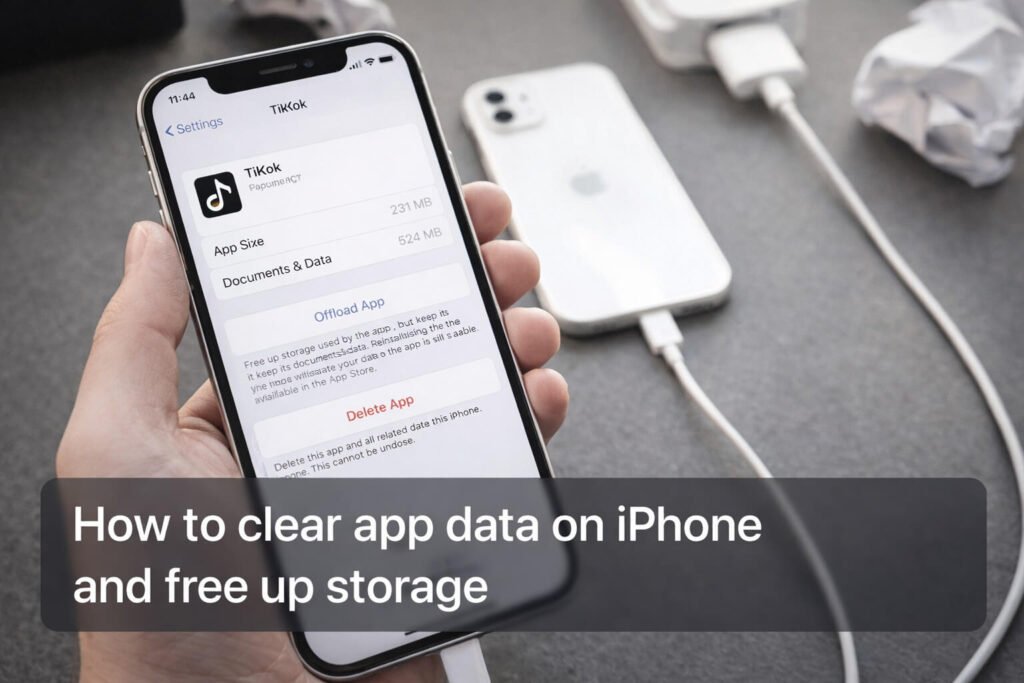
Step 1: See what’s taking space (start here)
Before you delete anything, check what’s actually bloated.
- Go to Settings → General → iPhone Storage
- Tap the app you want to shrink
Apple’s iPhone User Guide explains how to review iPhone storage and manage apps from iPhone Storage.
This screen usually shows:
- App Size (the app itself)
- Documents & Data (downloads, cache, files, user data)
Step 2: Try the “in-app” cleanup first (best-case scenario)
Many apps (especially social + streaming) have their own cleanup tools, like:
- Clear downloads / offline storage
- Remove cache
- Reset storage
- Log out / clear local files
If you see this inside the app’s Settings, it’s the cleanest option because it doesn’t require reinstalling.
(Examples: Spotify downloads, Netflix downloads, Google Maps offline areas, etc.)
Step 3: Offload the app (keeps data, removes the app)
If you want to free space without wiping your data, use Offload App.
- Offloading removes the app itself, but keeps its documents and data.
- Reinstalling the app restores it while keeping your data.
Apple documents offloading apps as a way to free storage while keeping documents and data.
How to offload an app
- Settings → General → iPhone Storage
- Tap the app
- Tap Offload App
When to use Offload:
- The app itself is large
- You don’t want to lose app data/logins
- You want a quick storage win
Step 4: Delete the app (removes app + app data)
If your goal is a true “reset,” the most reliable method is still:
Delete the app → reinstall it
Apple explains that deleting an app removes it and its data (and notes that if you delete a built-in Apple app, you may also remove related user data/configuration).
How to delete an app from iPhone Storage
- Settings → General → iPhone Storage
- Tap the app
- Tap Delete App
Then reinstall it from the App Store.
When to delete/reinstall:
- The app’s Documents & Data is huge
- You want to fully reset the app
- The app is glitching and you want a clean start
Apple Support (delete apps): https://support.apple.com/en-us/118203
Step 5: If you can’t delete the app, check restrictions
If “Delete App” is missing or greyed out, it’s often a Screen Time restriction (common on kids’ iPhones / managed devices).
Apple documents using Screen Time’s Content & Privacy Restrictions to block apps/features and manage what can be changed.
Fix path to check:
- Settings → Screen Time → Content & Privacy Restrictions
Apple Support (Screen Time restrictions): https://support.apple.com/en-us/HT201304
Related Articles
- How to Delete Hidden Apps on iPhone
- How to Block Apps on iPhone (Screen Time, Downtime + More)
- How to Find Hidden Apps on iPhone
Get in Touch!
Small tweaks make a big difference. Want more practical tech guides like this?
Sign up for the Techgiant.net newsletter and get daily tips, app guides, and no-nonsense tech and gaming updates, straight to your inbox.
FAQs
Can you clear app cache on iPhone?
Not always with a single universal button. Some apps include their own “clear cache/downloads” tools. Otherwise, offloading or deleting/reinstalling is the most reliable way to reduce storage.
What’s the difference between Offload App and Delete App?
Apple documents that offloading removes the app but keeps its documents/data, while deleting removes the app and its data.
Why is an app’s “Documents & Data” so big?
Usually offline downloads, cached media, messages/attachments, or saved files. Check in-app settings first, then use offload/delete depending on how “clean” you want the reset to be.
Why can’t I delete apps on my iPhone?
Screen Time restrictions can block deleting apps or changing settings.
References
https://support.apple.com/guide/iphone/check-your-storage-iph3b6f4f5f8/ios
https://support.apple.com/en-us/HT202070
https://support.apple.com/en-us/118203
https://support.apple.com/en-us/HT201304