If your character feels “floaty,” shots feel delayed, or your controller response is a beat behind — you’re not crazy. That’s input lag, and it usually comes from your TV processing the image before it shows it.
The good news: you can often cut input lag dramatically in 5–10 minutes just by changing the right settings.
Let’s fix it — starting with the changes that have the biggest impact.
Quick checklist (biggest wins first)
- Turn on Game Mode (this is usually the #1 fix).
- Enable ALLM (Auto Low Latency Mode) if your TV/console supports it.
- Disable extra picture processing (motion smoothing, noise reduction, etc.).
- Make sure you’re using the correct HDMI port + correct HDMI format setting.
- If you have a next-gen console/PC setup, enable the right features (120Hz/VRR) in the right order.
Step 1: Confirm it’s input lag (not internet lag)
This is important because people use “lag” for everything.
Input lag looks like:
- delayed button response
- aiming feels “heavy”
- even offline games feel delayed
Network lag looks like:
- rubber-banding, teleporting players
- delayed hit registration online only
If the delay happens offline, it’s almost definitely input lag (TV/display side).
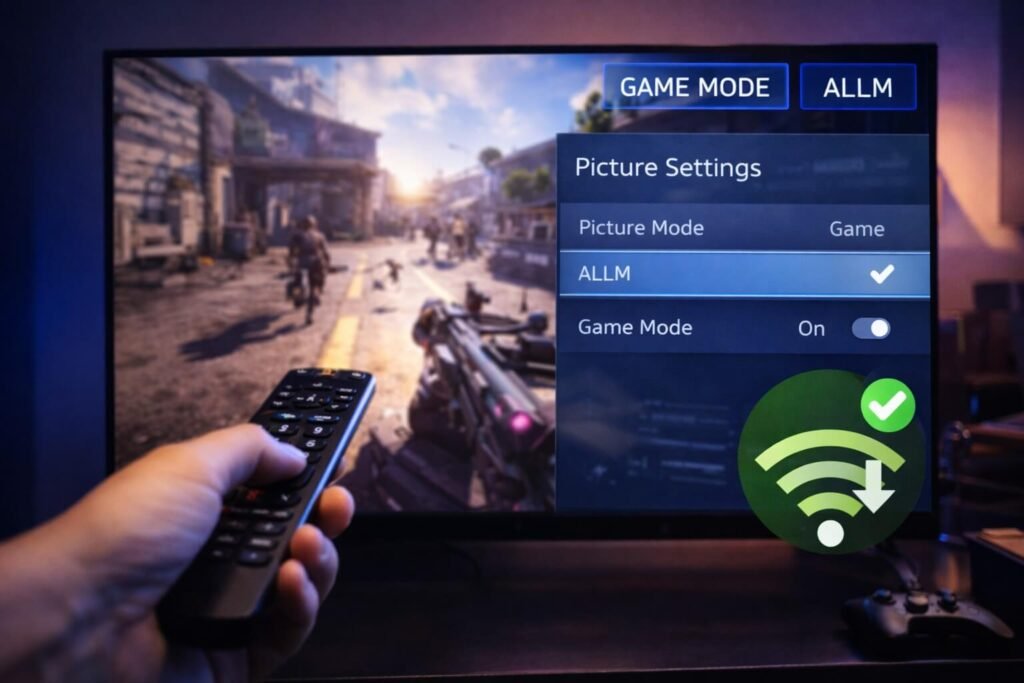
Step 2: Turn on Game Mode (the fastest real fix)
Game Mode is designed to reduce the TV’s processing pipeline, which is where most of the delay comes from.
A simple way to understand it: modern TVs do a lot of work (motion processing, upscaling tricks, smoothing). That “work” adds time.
Pro tip: after enabling Game Mode, keep your picture settings simple. The more “enhancement” features you turn on, the more likely input lag creeps back up.
If you want a deeper baseline on what input lag is and why it matters, RTINGS explains input lag as the time it takes for the TV to display the signal after the source sends it.
Step 3: Enable ALLM (Auto Low Latency Mode) when available
ALLM is basically “Game Mode, but automatic.”
HDMI.org explains that Auto Low Latency Mode (ALLM) enables the ideal low-latency setting automatically — and that this is often what TVs call “Game Mode.”
(HDMI.org): “Auto Low Latency Mode enables the ideal latency setting to automatically be set…”
Why this matters:
- It prevents the classic problem where you game in Movie mode by accident
- It reduces menu-hopping when you switch between gaming and streaming
Step 4: Turn OFF the usual “lag creators”
Even with Game Mode, some TVs still let extra processing run. These are the usual suspects:
- Motion smoothing / motion interpolation (often branded “TruMotion,” “MotionFlow,” etc.)
- Noise reduction
- MPEG noise reduction
- “Clarity” enhancers
- Super resolution / edge enhancement
- Dynamic contrast or heavy AI processing modes (varies by brand)
Rule of thumb: if it’s designed to make movies look “smoother,” it usually adds delay.
Step 5: Check your HDMI port + HDMI input format settings
This is where next-gen consoles and PCs often get bottlenecked.
A common setup mistake:
- Console is plugged into a non-optimized HDMI port, or
- The port is set to a compatibility mode instead of enhanced/VRR mode
On Sony TVs (example), Sony’s support doc shows a path where HDMI input format/VRR settings live and notes behavior differences when ALLM is active.
You don’t need a Sony TV for this to be useful — the takeaway is universal:
- Most TVs have per-HDMI input settings
- Gaming features often require enabling the “enhanced” HDMI mode per port
Step 6: If you’re on PS5 / Xbox / PC, use the “right combo”
For PS5 / Xbox
- Prioritize Game Mode or ALLM first (lowest-latency picture mode).
- Then enable any console-level features (120Hz/VRR) if your TV supports them.
For PC gaming on TV
- Make sure Windows is actually set to the refresh rate you bought (120Hz/144Hz etc.). Microsoft shows the steps to change refresh rate in Windows.
- If you want the full PC optimization approach, your “High Refresh Rates” post is the right next step.
Step 7: One sneaky cause — intermediate devices
If you route your console through:
- an older AV receiver
- a soundbar without proper passthrough
- an HDMI switch
…it can break gaming features or force compatibility modes.
If you’re troubleshooting a “why won’t my gaming features work?” situation, Microsoft’s guidance (in the context of ALLM/VRR issues) specifically calls out avoiding intermediate devices and connecting directly to the display when passthrough isn’t supported.
Related Articles:
- How to Optimize Gaming PC for High Refresh Rates (144Hz / 240Hz / 360Hz)
- How to Optimize PS5 for Online Gaming (Lower Ping + Less Lag)
- How to Optimize a Gaming Laptop for VR
Get In Touch!
Small tweaks make a big difference. Want more practical tech guides like this?
Sign up for the Techgiant.net newsletter and get daily tips, app guides, and no-nonsense tech and gaming updates, straight to your inbox.
FAQs
What is input lag on a TV?
Input lag is the delay between your console/PC sending a signal and the TV showing it. RTINGS explains it as the time it takes for the TV to display a signal after the source sends it.
Does Game Mode reduce input lag?
Yes — in most cases it’s the biggest improvement because it reduces extra processing.
What is ALLM and do I need it?
ALLM automatically switches your TV into its low-latency mode (often Game Mode). HDMI.org describes ALLM as enabling the ideal latency setting automatically.
Why does my TV feel laggy even with Game Mode on?
Common causes:
- motion processing still enabled
- wrong HDMI port/input format setting
- using a receiver/switch that limits gaming features
- console/PC output set incorrectly
References
https://www.rtings.com/tv/tests/inputs/input-lag
https://www.hdmi.org/spec2sub/autolowlatencymode
https://www.sony.com/electronics/support/articles/00277404
https://support.microsoft.com/en-us/windows/change-the-refresh-rate-on-your-monitor-in-windows-c8ea729e-0678-015c-c415-f806f04aae5a
https://learn.microsoft.com/en-us/answers/questions/5581985/why-cant-i-use-4k-allm-vrr-ect-on-hdmi-like-it-doe