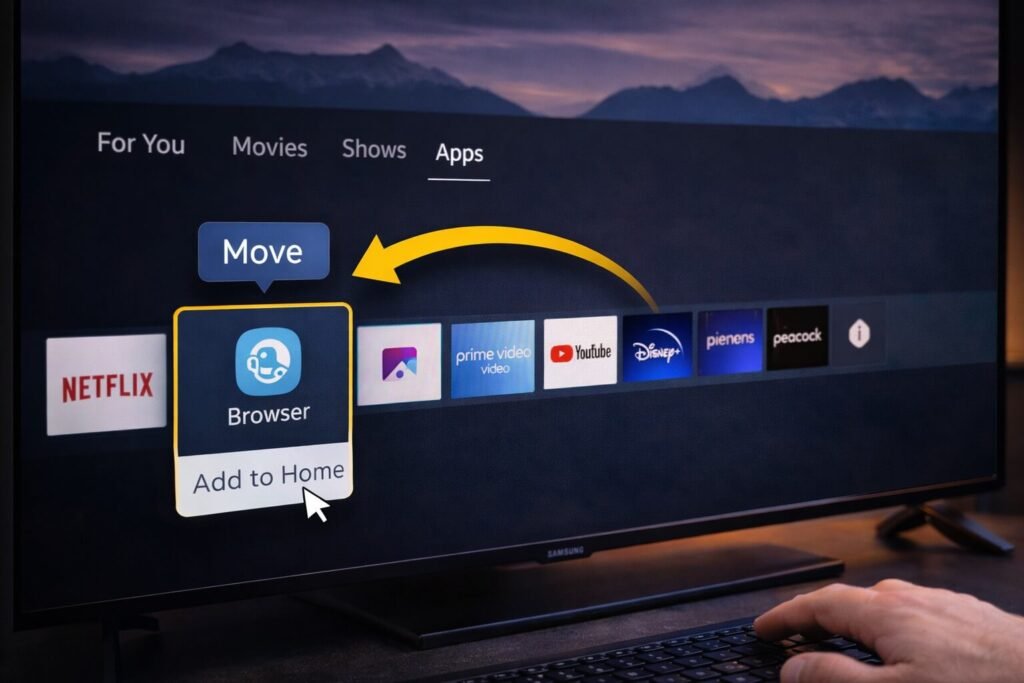
On Samsung Smart TVs, the “Home screen” is basically your Smart Hub home bar – that row of app tiles you scroll through.
There are two common situations:
- You want to install a new app and pin it to the Home screen
- You already have the app installed, but you want to add it to Home (so it shows in your main app row)
I’ll show both – plus how to move apps to the front.
Quick checklist (fastest way)
- Press Home on the remote
- Go to Apps
- Install the app (if needed)
- Choose Add to Home (pin it)
- Reorder the app so it’s near the front
1) Install a new app and add it to the Home screen
This is the cleanest method because Samsung often offers “Add to Home” right after installation.
Steps
- Press Home on your remote
- Navigate to Apps
- Search for the app you want
- Select Install
- After installation, choose Add to Home (if prompted)
Samsung’s support guide explicitly describes that after installing, a menu appears that lets you Open or Add to Home.
2) Add an already-installed app to your Home screen (pin it)
Sometimes the app is installed but not pinned on your home bar.
Steps (general Samsung Smart TV flow)
- Press Home
- Go to Apps
- Open the Settings / gear inside Apps (or “Edit” options)
- Select the app
- Choose Add to Home
If your Samsung TV model shows a slightly different menu label (Edit List / Add to Home / Move), that’s normal – Samsung notes options can vary by model.
3) Move/reorder apps on the Samsung TV Home bar (so your favorites are first)
Once an app is on the Home screen, you’ll want it in the front few slots.
Samsung’s official guide explains rearranging apps via an edit list and moving left/right.
Steps
- Press Home
- Choose Edit List (or highlight the app and open the edit options)
- Select Move
- Move the app left/right to your preferred position
4) Remove an app from the Home screen (without uninstalling)
Depending on your TV model, you can often remove an app tile from the Home bar without fully uninstalling the app.
The idea is simple:
- Remove from Home = hide the shortcut
- Delete/Uninstall = remove the app entirely
If you don’t see “Remove,” check if the TV only allows uninstalling for that app (some default apps behave differently).
5) If “Apps” or “Add to Home” isn’t working (quick fixes)
If Smart Hub is glitchy or apps won’t pin, try these in order:
A) Restart the TV properly
Power off → unplug for ~30 seconds → plug back in.
B) Check for Smart Hub / service issues
Sometimes it’s not you – Smart Hub services can have outages (rare, but it happens).
C) Update the TV software
Updates can fix Smart Hub/app issues (and may add app compatibility).
D) Make sure you’re signed into your Samsung account
Some app store features behave better once you’re signed in.
Related Articles:
- How to Add Apps to CarPlay (And Customize the Layout)
- How to Force Close an App on Windows
- How to Find, Hide, and Delete Apps on iPhone & Android
Get In Touch!
Small tweaks make a big difference. Want more practical tech guides like this?
Sign up for the Techgiant.net newsletter and get daily tips, app guides, and no-nonsense tech and gaming updates, straight to your inbox.
FAQs
Why can’t I find “Add to Home” on my Samsung TV?
Menu labels and available options can vary by Samsung TV model. If you don’t see it after installing, try adding from the Apps section/settings, or use the edit/move tools instead.
How do I move an app to the front of my Samsung TV Home bar?
Use the edit list/move option to reposition apps left/right on the Home screen.
Can I remove an app from Home without uninstalling it?
Often yes (it removes the shortcut). If your model doesn’t show “Remove,” you may only have uninstall/disable options for that particular app.
Why are apps not showing up on my Samsung TV?
Common reasons: Smart Hub glitch, TV software needs an update, account sign-in issues, or a temporary service outage.
References
https://www.samsung.com/ae/support/tv-audio-video/how-to-install-and-manage-apps-on-your-samsung-smart-tv/
https://www.samsung.com/in/support/tv-audio-video/how-to-move-and-rearrange-apps-in-samsung-tv/
https://www.youtube.com/watch?v=wgNGDAAIxzs