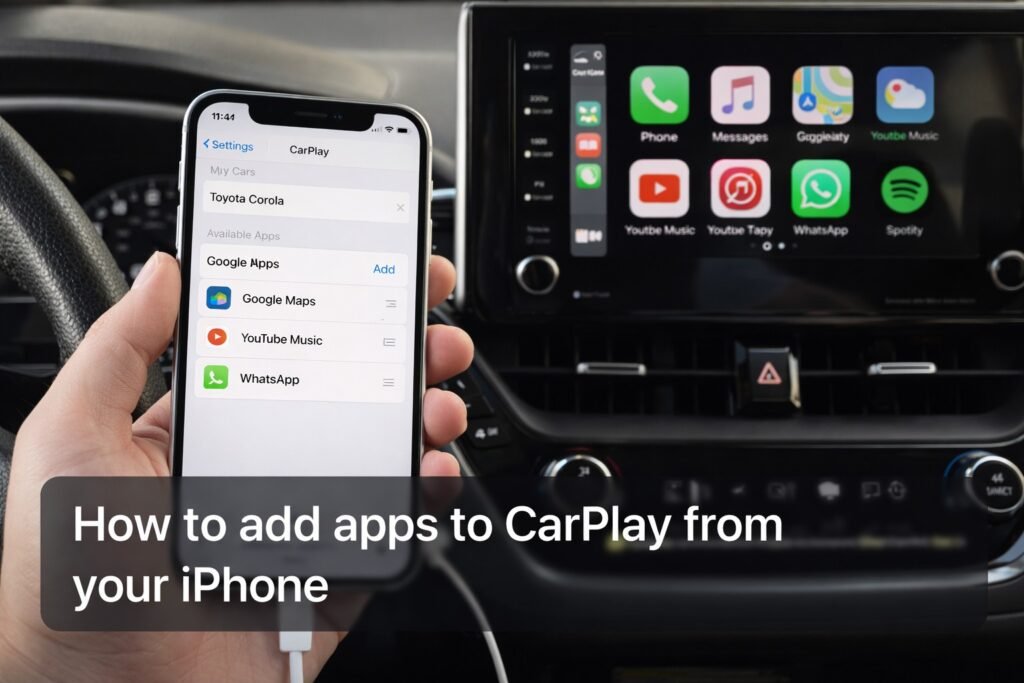
If you’ve ever connected your iPhone to CarPlay and thought, “Why aren’t my apps showing up?” – you’re not alone.
Here’s the key thing to know:
- You don’t “install” apps directly on CarPlay.
- You install apps on your iPhone, and then (if they support CarPlay) you can add/remove/rearrange them from your iPhone’s CarPlay settings. Apple notes that only apps supported by CarPlay will appear.
Let’s set it up properly.
Step 1: Make sure your iPhone is connected to CarPlay
Connect via USB or wireless (if your car supports wireless CarPlay). Once CarPlay is active on your car display, you can customize the app layout from your iPhone.
Apple’s CarPlay guide includes the exact path to your CarPlay settings.
Step 2: Add apps to CarPlay (the official method)
This is the main “how to add apps to CarPlay” workflow.
- On your iPhone, open Settings
- Tap General
- Tap CarPlay
- Select your car
- Tap Customize
From here you can:
Add an app
- Under More Apps, tap the + next to the app to add it back to CarPlay. Apple documents adding an icon back to CarPlay from the “More Apps” section.
Remove an app
- Tap the – next to an app and remove it (Apple notes only some icons can be removed).
Rearrange the order
- Drag the apps up/down so your most-used apps (Maps, Music, Calls) are easiest to reach. Apple documents dragging to change icon order.
Quick quote (Apple): “Only apps that are supported by CarPlay will appear on your display.”
Apple Support CarPlay guide: https://support.apple.com/en-us/108415
Step 3: If an app isn’t showing up in CarPlay, here’s why
This is where most people get stuck — so keep it simple and honest.
Reason #1: The app doesn’t support CarPlay
CarPlay only shows compatible apps. If an app isn’t designed for CarPlay, it won’t appear in your Customize list or on the CarPlay screen.
Reason #2: You haven’t installed the app on your iPhone
CarPlay pulls from what’s installed on your iPhone. Install the app first, then come back to:
Settings → General → CarPlay → your car → Customize.
Reason #3: The app is restricted (or not allowed)
If you’re using Screen Time restrictions (especially on a child’s iPhone), some apps/features can be blocked. Apple documents using Screen Time restrictions to block apps/features.
If CarPlay feels “oddly limited,” check Screen Time settings.
Reason #4: You changed the layout but don’t see it in the car
Apple notes the new order should appear the next time you connect to CarPlay.
Quick fix: disconnect/reconnect (or restart iPhone if needed).
Optional: Change CarPlay wallpaper (nice little upgrade)
If you want a quick “personalized” win:
- On your car’s CarPlay display, open Settings → Wallpaper → choose a wallpaper and set it. Apple describes this directly in their CarPlay guide.
Apple iPhone User Guide (rearrange icons on CarPlay Home): https://support.apple.com/guide/iphone/rearrange-icons-on-carplay-home-ipha5936fe07/ios
Related Articles:
- Also Read: How to Find Hidden Apps on iPhone
- Also Read: How to Block Apps on iPhone (Screen Time, Downtime + More)
- Related Article: How to Find, Hide, and Delete Apps on iPhone & Android
Get in Touch!
Small tweaks make a big difference. Want more practical tech guides like this?
Sign up for the Techgiant.net newsletter and get daily tips, app guides, and no-nonsense tech and gaming updates, straight to your inbox.
FAQs
Can you add any app to CarPlay?
No — CarPlay only displays apps that support CarPlay. Apple states that only supported apps appear on your CarPlay display.
How do I add apps to my CarPlay screen?
On iPhone: Settings → General → CarPlay → select your car → Customize → tap + to add apps (from More Apps).
How do I remove apps from CarPlay?
In the same Customize screen, tap the – next to an app (only removable apps show the remove control).
How do I rearrange CarPlay apps?
In Customize, drag apps up/down to reorder them. Apple documents dragging icons to change the order.
Why aren’t my apps showing on CarPlay?
Most common causes: the app doesn’t support CarPlay, it isn’t installed on your iPhone, restrictions are enabled, or you need to reconnect after changes.
References
https://support.apple.com/en-us/108415
https://support.apple.com/guide/iphone/rearrange-icons-on-carplay-home-ipha5936fe07/ios