If an Apple Watch app is frozen, glitching, or just acting weird, closing it and reopening is usually the fastest fix.
The only confusing part? Apple changed how you open the App Switcher depending on your watchOS version.
Here’s the exact method for both newer and older watches – plus how to force quit a truly stuck app.
Key takeaways (quick wins)
- On watchOS 10/11, you open the App Switcher by double-clicking the Digital Crown.
- In the App Switcher, you can close apps by swiping and using the close option (varies slightly by version).
- If an app is frozen, you can force quit it (special button combo).
- If your watch is acting up overall, restarting can help. Apple documents how to restart/force restart.
Step 1: Open the App Switcher (this depends on your watchOS)
watchOS 10 / watchOS 11 (newer method)
Apple’s own support doc is clear:
“Double-click to open the App Switcher.”
How to do it
- From any screen, double-click the Digital Crown
- Scroll through recent apps (swipe or use the Crown)
watchOS 9 and earlier (older method)
Apple notes that on older watchOS versions, opening the App Switcher was tied to the side button instead.
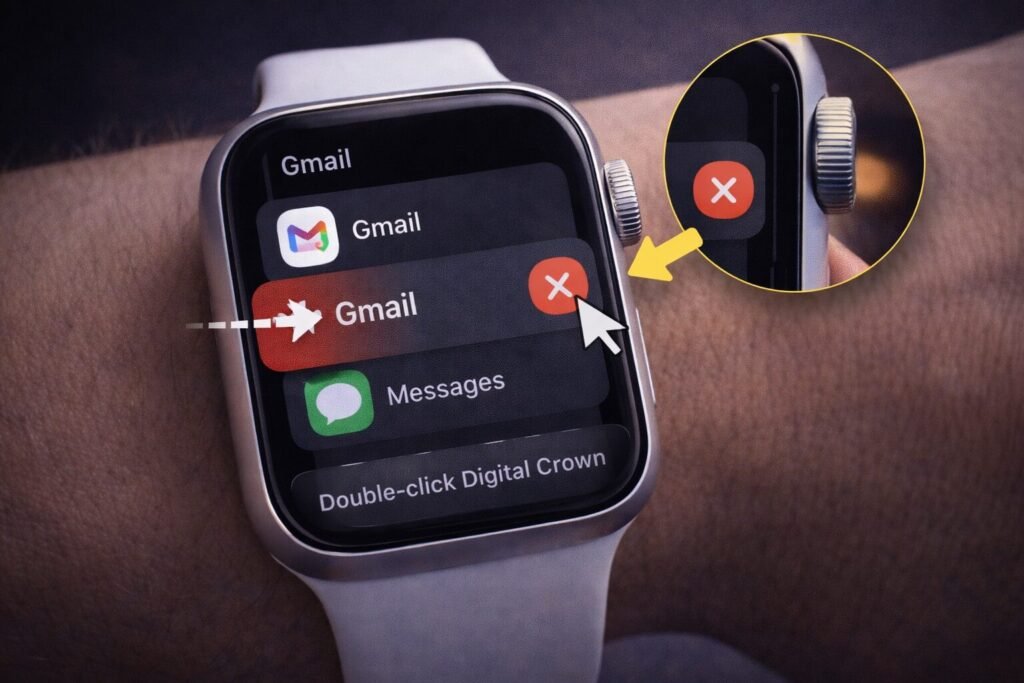
Step 2: Close an app from the App Switcher
Once you’re looking at the list of recent apps:
- swipe to the app you want to close
- use the close gesture/button shown (commonly a swipe action revealing an X)
Because the exact close UI can vary by watchOS version, a reliable walkthrough is shown here (with screenshots):
Tip (real-life): If you only care about one misbehaving app, close just that one — you don’t need to “purge” everything.
Step 3: Force quit a frozen Apple Watch app (when it won’t close normally)
If the app is totally stuck (won’t respond, won’t close, watch feels “trapped” in it), use a force quit.
A common method documented by reputable guides is:
- Make sure the stuck app is open on screen
- Press and hold the side button until the power/Emergency screen appears
- Release the side button, then press and hold the Digital Crown until the app closes
If the Watch itself is unresponsive beyond that, Apple documents the proper force restart combo (side button + Digital Crown for ~10 seconds).
Step 4: Should you close apps on Apple Watch all the time?
Here’s the practical truth:
- If an app is working fine, constantly closing it usually isn’t necessary.
- If an app is glitchy or frozen, closing/reopening is absolutely worth doing.
(Apple explicitly says something similar for iPhone-closing apps is mainly for when they’re unresponsive-so it’s a good mindset to apply here too.)
Related Articles:
- How to Force Close an App on Windows
- How to Find, Hide, and Delete Apps on iPhone & Android
- Which Apps Use the Most Data on iPhone & Android
Get In Touch!
Small tweaks make a big difference. Want more practical tech guides like this?
Sign up for the Techgiant.net newsletter and get daily tips, app guides, and no-nonsense tech and gaming updates, straight to your inbox.
FAQs
How do I open the App Switcher on Apple Watch (watchOS 10/11)?
Apple says to double-click the Digital Crown to open the App Switcher.
How do I close an app from the App Switcher?
In the App Switcher, swipe to the app and use the close gesture/button shown (often swipe to reveal an X). The exact UI varies slightly by version.
How do I force quit an Apple Watch app that’s frozen?
Open the app, hold the side button until the power/Emergency screen appears, then hold the Digital Crown until the app closes.
What if my Apple Watch is completely unresponsive?
Apple documents a force restart: hold the side button + Digital Crown together until the Apple logo appears (about 10 seconds).
References
https://support.apple.com/en-al/105093
https://support.apple.com/en-us/105063
https://support.apple.com/guide/watch/open-apps-apda1bf1a95b/watchos
https://support.apple.com/guide/watch/restart-apple-watch-apd521a8a902/watchos
https://support.apple.com/guide/iphone/quit-and-reopen-an-app-iph83bfec492/ios
https://www.howtogeek.com/839192/how-to-close-an-apple-watch-app/
https://www.lifewire.com/close-apps-on-apple-watch-4174552
https://www.macobserver.com/tips/how-to/close-apps-in-apple-watch/