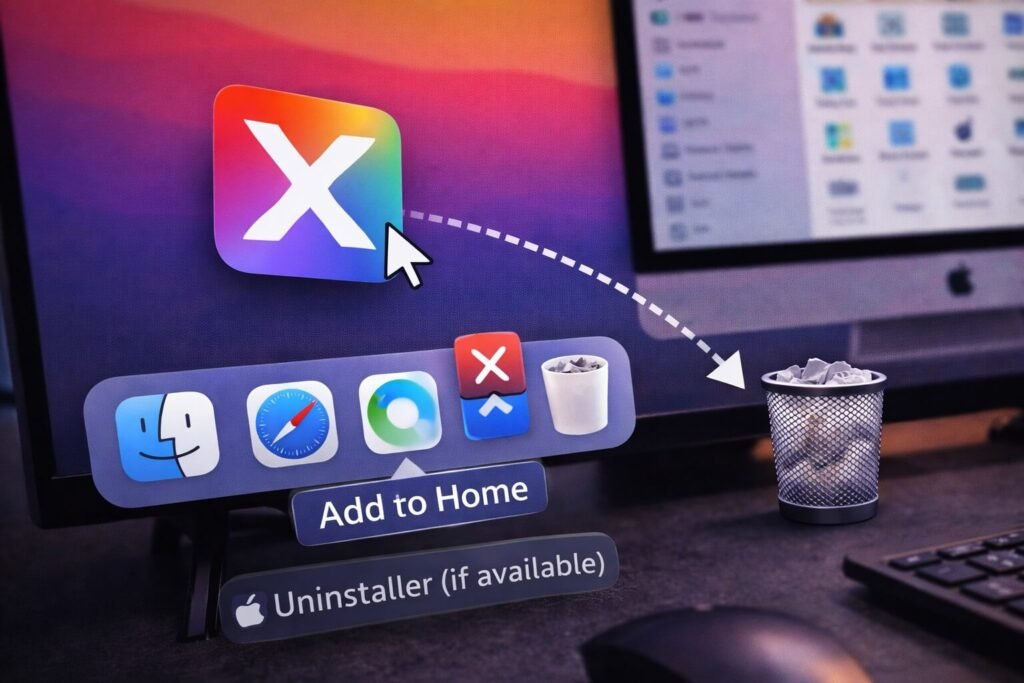
Deleting apps on a Mac is usually easy… until it isn’t.
Sometimes you click around and there’s no uninstall button. Sometimes Launchpad won’t show the little “X.” Sometimes the app is “deleted” but it still launches at startup.
So here’s the no-nonsense way to uninstall apps on Mac – starting with the cleanest option first.
Quick checklist (do this in order)
- If the app has an Uninstaller, use it first (best cleanup).
- If it’s from the App Store, delete it via Launchpad.
- If it’s not from the App Store, delete it via Finder → Applications.
- Empty Trash
- If it still launches or leaves stuff behind, remove login items/extensions.
Step 1: If the app includes an Uninstaller, use that (best option)
Apple’s own guidance is clear: if the app includes an uninstaller, use it, because it knows where the app stored support files like login items, extensions, caches, and other non-user data.
Where to find it: it’s often inside the same folder as the app (or inside the app’s folder in Applications).
Step 2: If the app came from the App Store, delete it via Launchpad
Apple says Launchpad is the convenient way to delete apps you downloaded from the App Store.
How to delete via Launchpad
- Open Launchpad
- Click and hold the app until icons “wiggle”
- Click the X button to delete (if available)
Important: If you don’t see an X, it usually means:
- it wasn’t installed from the App Store, or
- it’s a built-in/system app that can’t be removed this way.
Step 3: If it’s not from the App Store, uninstall it from Finder (Applications)
This is the standard method for “normal” Mac apps downloaded from the web.
Apple’s uninstall instructions include removing apps from the Finder (typically from the Applications folder).
How to uninstall from Finder
- Open Finder
- Go to Applications
- Drag the app to the Trash (or right-click → Move to Trash)
- Empty Trash to finish removal
Tip: If macOS asks for an admin password, that’s normal for some apps.
Step 4: When “I deleted it” but it still shows up or runs
This is where most people get annoyed. Two common reasons:
A) The app is still running (or stuck)
Quit the app first, then try again. If it refuses to close, force quit it – same idea as your Windows force-close guide.
B) It installed login items or extensions
Even if you remove the main app, it might have left behind:
- things that launch at login
- background helpers
- extensions
Apple’s Mac User Guide explains where to manage Login Items & Extensions in System Settings.
Remove login items (quick path)
Apple’s guide points to: System Settings → General → Login Items & Extensions, where you can remove items from “Open at Login.”
Step 5: Want a “clean uninstall” (leftovers)?
Quick truth: many apps leave support files behind (caches, settings, helper files). Apple’s recommendation is still to prefer the app’s uninstaller when available, because it knows where those files live.
If you’re uninstalling because storage is tight, do this:
- uninstall the app (Steps 1–3)
- remove login items (Step 4 if needed)
- restart once (optional but helpful)
(I’m keeping this safe: no “delete random Library folders” advice that can break stuff.)
Related Articles:
- How to Force Close an App on Windows
- How to Clear App Data on iPhone (What Actually Works)
- How to Find, Hide, and Delete Apps on iPhone & Android
Get In Touch!
Small tweaks make a big difference. Want more practical tech guides like this?
Sign up for the Techgiant.net newsletter and get daily tips, app guides, and no-nonsense tech and gaming updates, straight to your inbox.
FAQs
Why can’t I delete an app from Launchpad?
Launchpad deletion mainly applies to apps downloaded from the App Store, per Apple’s guidance. If there’s no “X,” try uninstalling from Finder instead.
What’s the best way to uninstall apps on Mac completely?
If the app has an Uninstaller, Apple says that’s the best option because it can remove related support files (login items, extensions, caches).
Why does an app still open at startup after I deleted it?
It likely added a login item or background helper. Apple shows how to remove those in Login Items & Extensions.
References
https://support.apple.com/en-us/102610
https://support.apple.com/102610
https://support.apple.com/guide/mac-help/change-login-items-extensions-settings-mtusr003/mac
https://support.apple.com/en-qa/guide/mac-help/mh21210/mac