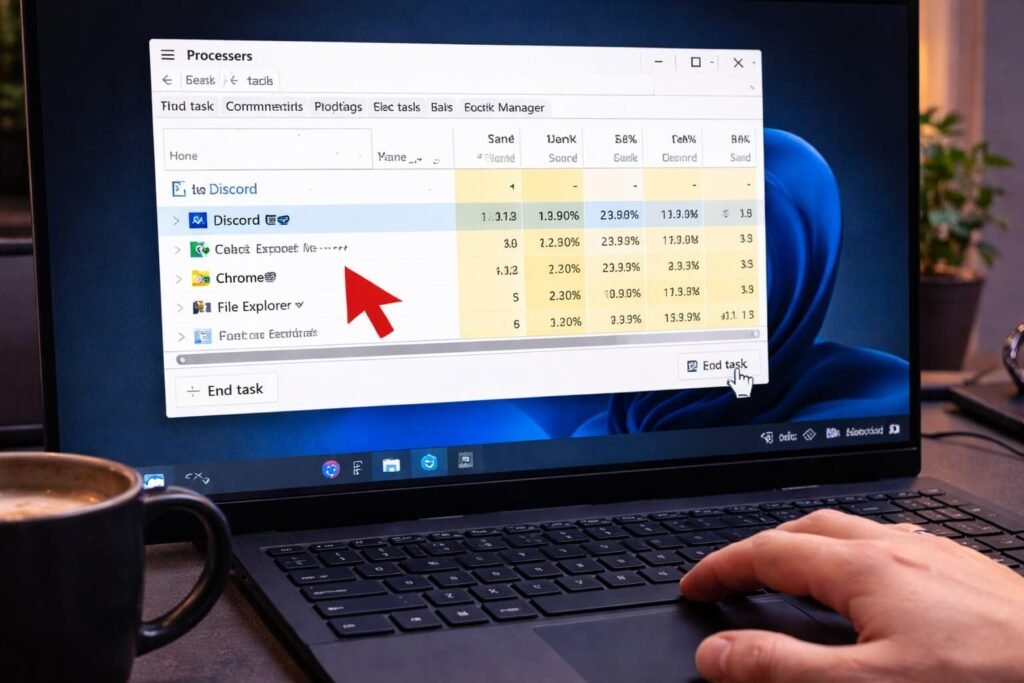
We’ve all been there: an app freezes, the window turns white, and Windows hits you with the classic “Not Responding.”
At that point you’ve got two goals:
- close it without making things worse
- avoid losing anything important (if possible)
Here are the fastest and safest ways to force close an app on Windows — starting with the least aggressive option first.
Quick checklist (pick the first method that works)
- Try Alt + F4 (quick “polite” close)
- If it’s stuck, use Task Manager → End task
- If Task Manager can’t kill it, use taskkill (Command Prompt)
- If everything is frozen, restart Windows (last resort)
Step 1: Try the quick close (Alt + F4)
If the app still has focus (you clicked inside it), this often works.
Microsoft lists Alt + F4 as: “Close the active item, or exit the active app.”
When this is best:
- the app is slow, but not completely dead
- you want to give it a chance to close normally (less risk of data loss)
Step 2: Force close it properly using Task Manager (End task)
If Alt+F4 doesn’t work, go straight to Task Manager.
How to do it (simple steps)
- Open Task Manager
- Find the frozen app under Processes
- Select it → click End task
Pro tip: If you’re not sure which thing to end, look for the one using the most CPU/RAM under Processes — it’s usually the culprit.
Step 3: If it still won’t die, use the taskkill command (stronger “hard stop”)
This is the “okay, enough” option when a process refuses to close.
Microsoft’s documentation describes taskkill as a command that “Ends one or more tasks or processes.”
How to use taskkill (fast version)
- Open Command Prompt
- Run a command like:
- taskkill /im appname.exe /f
- or use a PID if you have it: taskkill /pid 1234 /f
What the flags mean (quickly):
- /im = target by image name (the .exe)
- /pid = target by process ID
- /f = force termination
Step 4: If your whole PC is stuck, restart (last resort)
If Task Manager won’t open, keyboard shortcuts don’t respond, and everything is locked up — a restart is sometimes the only way out.
If you can, wait a moment first (sometimes Windows recovers), but don’t let a stuck app cook your system for 30 minutes.
What to do after you force close the app (so it doesn’t keep happening)
This is the “two-minute prevention” part I always do:
- Reopen the app and update it (many freezes are bug fixes waiting to happen)
- If it freezes repeatedly: try repair/reset (for Microsoft Store apps) or reinstall
- If it’s a browser tab that keeps crashing: disable heavy extensions and retry
Related Articles:
- How to Clear App Data on iPhone
- How to Add Apps to CarPlay
- How to Delete Apps on Mac Already Installed
Get In Touch!
Small tweaks make a big difference. Want more practical tech guides like this?
Sign up for the Techgiant.net newsletter and get daily tips, app guides, and no-nonsense tech and gaming updates, straight to your inbox.
FAQs
Will force closing an app delete my files?
Usually no, but you can lose unsaved work inside that app. If you can, try Alt+F4 first before killing the process.
What’s the fastest way to force close a frozen app?
Task Manager → End task is the fastest “reliable” method for most people.
When should I use taskkill?
When the app won’t close through normal methods and you need a stronger termination command. Microsoft documents taskkill for ending tasks/processes.
Why does my app keep freezing?
Common causes: bugs, low memory, conflicting extensions/plugins, or corrupted app files. If it happens repeatedly, update the app and reinstall if needed.
References
https://support.microsoft.com/en-us/windows/keyboard-shortcuts-in-windows-dcc61a57-8ff0-cffe-9796-cb9706c75eec
https://learn.microsoft.com/en-us/windows-server/administration/windows-commands/taskkill