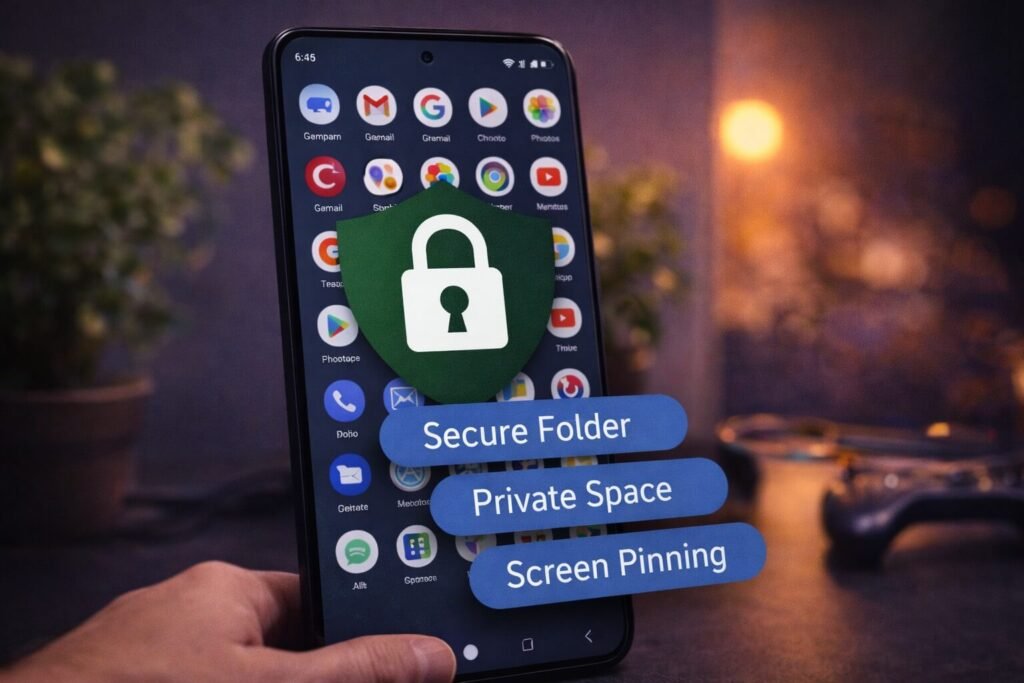
If you want to lock apps on Android, it helps to first clarify what kind of “lock” you mean, because Android has a few built-in options that solve different problems:
- Lock an app so others can’t open it (privacy)
- Hide + lock apps behind a separate space (strong privacy)
- Lock your phone to one app temporarily (when handing your phone to someone)
The good news: you can do all of that without installing a third-party app — you just need the right built-in feature for your phone.
Quick picker: choose the right method
- Samsung (best option): use Secure Folder (locks + separates apps)
- Android with Private Space: use Private Space (locks + hides apps when locked)
- Any Android (sharing your phone): use Screen Pinning / App Pinning (locks phone to one app)
- For kids: use Family Link to block/limit apps
1) Samsung: Lock apps using Secure Folder (strongest “no app needed” option)
If you’re on a Samsung Galaxy, Secure Folder is the cleanest built-in solution.
It creates a protected area that requires authentication, and you can put apps inside it (effectively “locking” access). Samsung’s support documentation explains how to use Secure Folder and even how to hide/unhide the Secure Folder itself from the Apps screen.
What this is best for:
- private messaging apps
- banking/finance apps
- photo storage apps
- anything you want separated from your normal phone use
2) Android: Lock apps using Private Space (locks + hides when locked)
If your Android supports Private Space, it’s another built-in way to keep sensitive apps separated.
Android Help is explicit about the behavior:
- “To hide apps from your main space, lock your private space.”
- When it’s locked, the private space collapses and the apps are hidden in All Apps and other OS surfaces.
What this is best for:
- hiding apps from your main app list
- keeping “private” apps separate
- reducing accidental app exposure in search/recent screens
Official guide (authoritative outbound link):
https://support.google.com/android/answer/15341885?hl=en
3) Any Android: Lock your phone to ONE app (Screen Pinning / App Pinning)
If your goal is: “I want someone to use this one app, but not browse my phone,” then you don’t need an app lock — you need Screen Pinning.
Android Help describes Screen Pinning like this:
- You can pin an app’s screen to keep it in view until you unpin it.
- With the screen pinned, someone can use only that app until you unpin.
How to use Screen Pinning (general steps)
- Turn on Screen Pinning in Settings (often under Security/Privacy)
- Open the app you want to “lock”
- Open Recents and view the pin option (varies by phone)
- To exit, unpin using the required button combo (Android shows you the combo)
Official guide:
https://support.google.com/android/answer/9455138?hl=en
Best use case: handing your phone to a kid/friend for one specific app.
4) For parents: lock/limit apps using Family Link
If you’re trying to lock apps for a child (or prevent certain apps entirely), Android’s built-in “best practice” route is Family Link.
Google’s Family Link help explains you can limit or block the apps your child can use on supported devices.
Best use case: real parental controls (not just “privacy from friends”).
Related Articles:
- How to Hide Apps on Android (No App Required)
- How to Find Hidden Apps on Android (Samsung, Pixel + More)
- How to Find, Hide, and Delete Apps on iPhone & Android
Get In Touch!
Small tweaks make a big difference. Want more practical tech guides like this?
Sign up for the Techgiant.net newsletter and get daily tips, app guides, and no-nonsense tech and gaming updates, straight to your inbox.
FAQs
Can I lock apps on Android without installing an app?
Yes. Depending on your phone, you can use Samsung Secure Folder, Android Private Space, or Screen Pinning.
What’s the best way to lock apps on Samsung?
Secure Folder is the strongest built-in option, since it protects apps behind authentication and can be hidden from the Apps screen.
Does Screen Pinning lock an app with a password?
Not exactly. It locks your phone to one app temporarily until you unpin it. It’s for safe sharing, not long-term password protection.
How do I lock apps for a child on Android?
Use Family Link to block or limit apps on their device.
References
https://support.google.com/android/answer/9455138?hl=en
https://www.samsung.com/us/support/answer/ANS10001401/
https://support.google.com/android/answer/15341885?hl=en
https://support.google.com/families/answer/7103028?hl=en