If you’re constantly hitting your data limit, the problem usually isn’t one “mystery app” – it’s a few common habits:
- background refresh (apps quietly updating)
- streaming quality (video/music chewing data)
- auto-updates on mobile data
- “helpful” settings that switch you to cellular when Wi-Fi is weak
The good news: you can cut your data usage fast, without turning your phone into a brick.
Let’s do it step-by-step.
Quick checklist (biggest wins first)
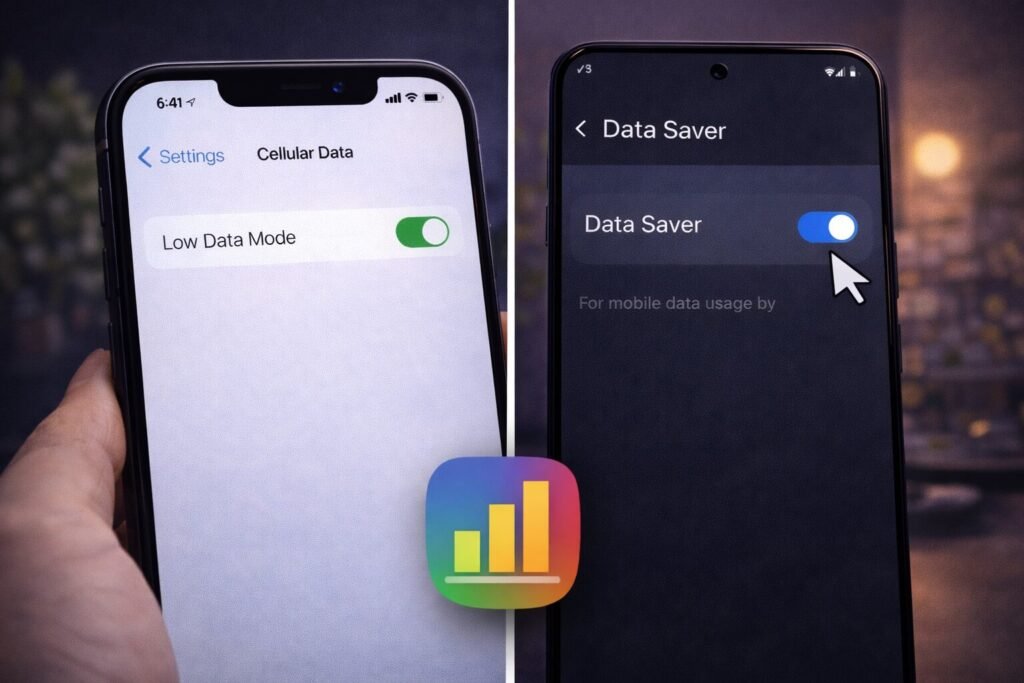
- iPhone: turn on Low Data Mode.
- Android: turn on Data Saver.
- Stop specific heavy apps from using cellular data (social + streaming are usually the culprits).
- Reduce streaming/download behavior (offline downloads on Wi-Fi only).
- Watch out for “Wi-Fi Assist” style settings that silently use cellular.
Step 1: Find the real data hogs first (2 minutes)
Before you change settings, it’s worth checking what’s actually eating your plan.
If you haven’t already, use your published guide:
That post tells you exactly which apps are the problem – this post shows you how to stop them.
iPhone: How to reduce mobile data usage
Step 2: Turn on Low Data Mode (the easiest “global” fix)
Apple explains Low Data Mode helps restrict background network use to reduce cellular data usage.
How to enable it (iPhone)
- Settings → Cellular (or Mobile Data) → Cellular Data Options → Low Data Mode
Step 3: Turn off cellular data for specific apps (surgical + powerful)
This is one of the highest-ROI settings on iPhone.
Apple’s iPhone guide shows you can control which apps and services use cellular data in your cellular data settings.
What to do
- Settings → Cellular → scroll down to the apps list
- Toggle off cellular for apps you don’t want using mobile data (social/video/cloud upload are common offenders).
Practical tip: Don’t block essentials like maps/messages if you rely on them outside.
Step 4: Watch out for “Wi-Fi Assist” (silent data drain)
Apple documents Wi-Fi Assist, which can switch you to cellular when Wi-Fi is poor.
If you’re trying to stay strict on data, this is worth checking.
Android: How to reduce mobile data usage
Step 5: Turn on Data Saver (Android’s best “global” fix)
Google explains Data Saver helps you use less mobile data by limiting background data for most apps (while allowing active apps to use mobile data).
How to enable it (general Android / Pixel-style path)
- Settings → Network & internet → Data Saver → turn it on
Step 6: Restrict background data for your worst offenders (per-app control)
Data Saver is great, but sometimes you want stricter control for a few apps.
The general idea: find the app’s data usage settings and disable background mobile data (menu wording varies by device/Android version).
Google’s Data Saver doc also explains the “background data only via Wi-Fi” behavior for most apps when Data Saver is on.
Best apps to restrict first (usually):
- TikTok/Instagram/Facebook
- YouTube/Netflix/streaming
- Cloud backup/photo sync apps
Step 7: Set smarter habits (small changes, big savings)
These are boring, but they work:
- Update apps on Wi-Fi only
- Download music/podcasts/maps before you go out (on Wi-Fi)
- Lower streaming quality inside YouTube/Netflix/Spotify if you stream on mobile data often
Related Articles:
- How to See Which Apps Use the Most Data on iPhone & Android
- How to Clear App Data on iPhone (What Actually Works)
- How to Find, Hide, and Delete Apps on iPhone & Android
Get In Touch!
Small tweaks make a big difference. Want more practical tech guides like this?
Sign up for the Techgiant.net newsletter and get daily tips, app guides, and no-nonsense tech and gaming updates, straight to your inbox.
FAQs
What’s the fastest way to reduce data usage on iPhone?
Turn on Low Data Mode, then disable cellular data for the biggest data-hog apps in Settings → Cellular.
What’s the fastest way to reduce data usage on Android?
Turn on Data Saver, then restrict the worst offenders (social + streaming) if needed.
Why is my data still draining even when I’m not using my phone?
Background activity + streaming apps + “helpful” cellular fallback features are the usual cause. Low Data Mode / Data Saver are designed specifically to reduce background use.
References
https://support.apple.com/en-us/102433
https://support.apple.com/guide/iphone/view-or-change-cellular-data-settings-iph3dd5f213/ios
https://support.google.com/pixelphone/answer/7055392?hl=en