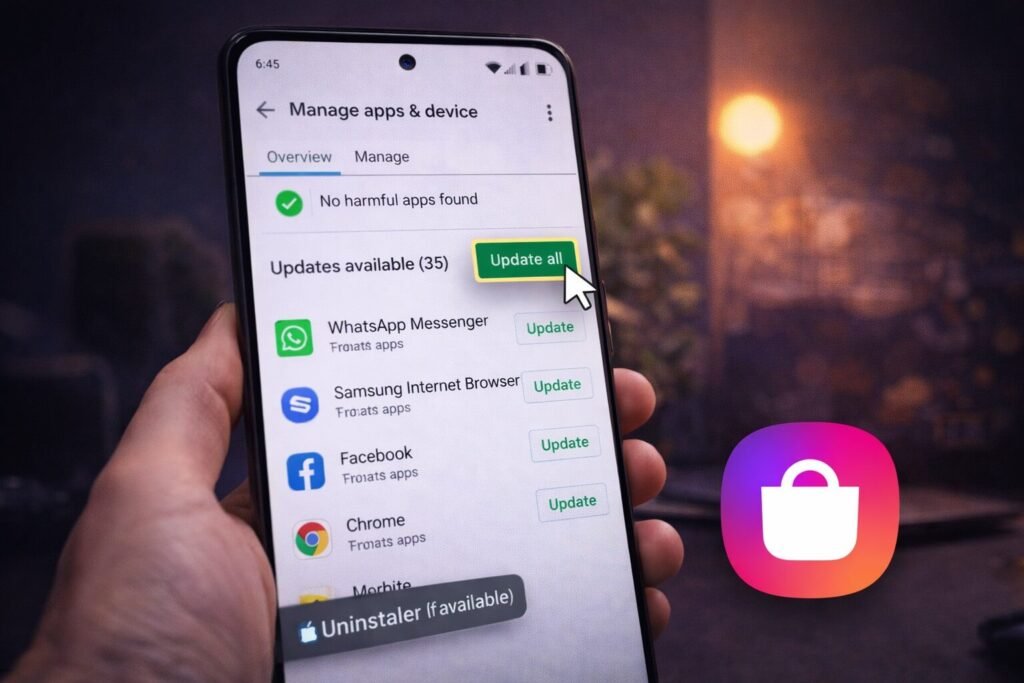
Keeping your apps updated isn’t just about new features – updates also patch bugs and (sometimes) security issues.
The good news: on Android, updating apps is simple once you know where to look. The only “gotcha” is that some phones (especially Samsung) can update apps from two places:
- Google Play Store (most apps)
- Galaxy Store (some Samsung apps + exclusives)
Let’s do it properly.
Quick checklist
- Update apps manually in Google Play (one app or “Update all”).
- Turn auto-updates on/off (useful if you’re saving data).
- If you’re on Samsung, also update apps in the Galaxy Store.
1) Update apps manually in Google Play (fastest + most reliable)
This is the method that works on basically every Android phone.
Update one app (manual)
- Open the Google Play Store
- Tap your profile icon (top-right)
- Tap Manage apps & device
- Under updates, choose the app and tap Update
Update all apps at once
Same path as above, but choose Update all when you see “Updates available.”
Short quote (Google Play Help): “You can update apps one at a time, or all at once.”
2) Turn auto-updates ON or OFF (so Android updates apps for you)
Auto-updates are great if you want zero maintenance – but if you’re trying to save mobile data (or avoid surprise changes), you may want manual control.
Google Play Help explains how to set apps to update automatically in Google Play.
Where the setting usually is
Google Play Store → profile icon → Settings → Network preferences → Auto-update apps (then choose your option).
Tip (real life): If you’re on a limited data plan, choose Wi-Fi only.
3) Samsung users: update apps from the Galaxy Store too
On Samsung phones, some apps can be updated through the Galaxy Store in addition to Play Store.
Samsung Support explains how to update apps on Galaxy devices and notes you can enable automatic updates, plus you’ll need the relevant accounts (Samsung account for Galaxy Store, Google account for Play Store).
4) If your apps won’t update (quick fixes that actually work)
If updates are stuck, not showing, or failing, try these in order:
A) Restart your phone
It sounds basic, but it clears a surprising number of Play Store “stuck” states.
B) Check your connection
If you’re on weak Wi-Fi, updates can fail repeatedly. (Also: some auto-update settings may restrict updates over mobile data.)
C) Make sure you’re signed into the right Google account
If you have multiple accounts, the app list and update prompts can vary depending on which account is active in Play Store.
D) Update apps manually (instead of waiting for auto)
Manual “Update all” is often faster than waiting for the system to decide.
Related Articles:
- How to See Which Apps Use the Most Data on iPhone & Android
- How to Clear App Data on iPhone (What Actually Works)
- How to Find, Hide, and Delete Apps on iPhone & Android
Get In Touch!
Small tweaks make a big difference. Want more practical tech guides like this?
Sign up for the Techgiant.net newsletter and get daily tips, app guides, and no-nonsense tech and gaming updates, straight to your inbox.
FAQs
How do I update all apps on Android at once?
In Google Play Store, go to Manage apps & device and tap Update all under “Updates available.”
Should I turn auto-updates on or off?
If you want convenience, turn them on. If you want control (or you’re saving data), turn them off and update manually. Google Play Help explains how to manage auto-updates.
Why do I have to update apps in both Play Store and Galaxy Store?
Some Samsung apps (and store-installed apps) update through Galaxy Store. Samsung Support documents updating apps through Play Store and Galaxy Store on Galaxy devices.
My apps aren’t updating – what’s the quickest fix?
Restart the phone, confirm Wi-Fi is stable, then manually run Update all from Google Play.
References
https://support.google.com/googleplay/answer/113412?hl=en
https://www.samsung.com/us/support/answer/ANS10002628/