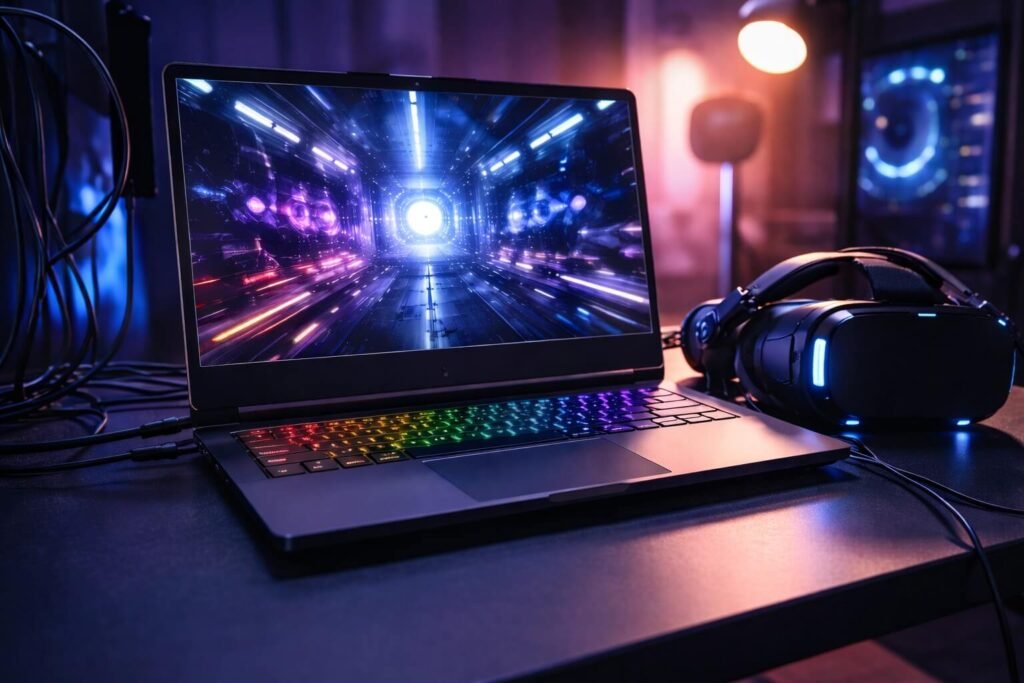
VR is the most honest performance test you can throw at a gaming laptop.
On a normal monitor, you can “get away with” occasional dips. In VR, the same dip becomes stutter, blur, discomfort, and input delay. The good news: you usually don’t need new hardware – you need the right settings.
This guide is focused on PCVR on a gaming laptop (Quest Link / Air Link + SteamVR), with the steps that make the biggest difference first.
Quick checklist (biggest wins first)
- Confirm your laptop meets Quest Link requirements (CPU/GPU/RAM baseline).
- Force high-performance power + the dedicated GPU (avoid running VR on iGPU).
- Set SteamVR Render Resolution to Auto (then tune down slightly per-game if needed).
- If you’re using wireless PCVR, fix your network first (Air Link depends heavily on Wi-Fi quality).
- Reduce latency with NVIDIA’s system-latency approach (Reflex where supported, and overall pipeline tuning).
1) Confirm your PCVR baseline (don’t skip this)
Before tweaking, make sure your laptop is actually in the “VR-ready” zone.
Meta publishes official Quest Link requirements (and Quest 3 requirements) so you can quickly sanity-check CPU/GPU/RAM.
Quote (Meta): “Only apps that meet the requirements will provide the best experience.”
Meta Quest Link requirements: https://www.meta.com/help/quest/articles/headsets-and-accessories/oculus-link/requirements-quest-link/
If you’re below spec, you can still improve performance — but you’ll need to be more aggressive about lowering resolution and graphics settings.
2) Put your laptop in “VR mode” (power, thermals, and the right GPU)
This is where laptops win or lose VR.
Switch to a high-performance power profile
VR is sustained load. If your laptop is in a balanced or battery-saver profile, it will downclock and stutter.
- Plug in power.
- Use your laptop’s performance mode (vendor utility) + Windows performance settings (where applicable).
Make sure VR is using the dedicated GPU (not integrated graphics)
A classic “why is my VR terrible?” cause is the headset runtime or VR game launching on iGPU.
Fast check: if your laptop has a MUX switch / “dGPU only” mode, enable it for VR sessions.
Keep thermals under control
Thermal throttling = random stutter 10–15 minutes into play.
- Raise the rear of the laptop slightly.
- Clean vents.
- Use a cooling pad if you already have one.
- Favor stable FPS over max visuals.
3) SteamVR: fix resolution first (this is the real performance lever)
If your VR looks blurry and stutters, SteamVR resolution is usually the root cause.
Steam Support’s performance tips for Half-Life: Alyx (works as a general SteamVR rule) specifically says to check SteamVR render resolution under:
SteamVR Settings → Video → Render Resolution and try “Auto.”
SteamVR also supports per-application resolution adjustment, which is exactly how you keep lightweight games sharp while dialing down heavy games.
What to do (simple and effective):
- Set global render resolution to Auto first.
- If a specific game still stutters, lower that game’s per-application resolution instead of nuking everything.
Steam Support (SteamVR render resolution tip): https://help.steampowered.com/en/faqs/view/38B5-EF22-968B-904E
4) Quest Link vs Air Link: choose the right connection
If you want maximum stability: use a cable (Quest Link)
Wired Link removes Wi-Fi variability. If your main issue is stutter spikes or compression artifacts, wired is often the easiest win.
If you want wireless freedom: fix your network (Air Link)
Meta provides official guidance on Air Link setup and also publishes network speed requirements (originally documented for Quest 2, but the logic still applies for wireless streaming stability).
What matters most for wireless VR:
- Strong router / clean channel
- Headset close to router
- Wired Ethernet from PC to router (when possible)
- Avoid congested networks during VR sessions
Meta Air Link overview/setup: https://support.meta.com/hc/en-us/articles/4406886296467-Air-Link-overview-and-setup
5) Reduce latency (so VR feels responsive, not “floaty”)
Smooth VR isn’t just FPS — it’s latency.
NVIDIA’s system latency optimization guide is the best “big picture” reference for reducing end-to-end latency (and it highlights NVIDIA Reflex as a direct latency reducer in supported games).
Practical latency wins:
- Turn on Reflex in games that support it (if available).
- Reduce background overlays (recorders, FPS overlays, browser tabs).
- Keep consistent frame delivery: lower graphics before you chase “ultra.”
6) VR stutter troubleshooting (when it’s still not fixed)
If you’re still getting stutter after the above:
- Lower SteamVR per-app resolution one step and retest.
- Prefer stable FPS over pretty settings (VR punishes unstable frame time).
- If wireless: treat Wi-Fi as guilty until proven innocent. Meta’s Air Link documentation exists for a reason.
Related Articles:
- How to Optimize Gaming PC for High Refresh Rates
- How to Fix Input Lag on a Gaming TV
- How to Optimize Xbox Series X for Low Latency Gaming
Get in Touch!
Small tweaks make a big difference. Want more practical tech guides like this?
Sign up for the Techgiant.net newsletter and get daily tips, app guides, and no-nonsense tech and gaming updates, straight to your inbox.
FAQs
What’s the fastest way to improve VR performance on a gaming laptop?
Start with SteamVR Render Resolution (set to Auto), then tune per-game resolution.
Should I use Quest Link or Air Link on a laptop?
If you want maximum stability, use Link. If you want wireless, Air Link can be great — but network quality matters a lot.
Why does my VR stutter after 10–15 minutes?
Common causes are thermal throttling or unstable frame times (settings too high). Lower resolution first, then graphics.
Do I need NVIDIA Reflex for VR?
Not required, but NVIDIA explains Reflex is designed to reduce system latency in supported games.
References
https://www.meta.com/help/quest/articles/headsets-and-accessories/oculus-link/requirements-quest-link/
https://support.meta.com/hc/en-us/articles/4414626193556-Quest-3-system-requirements https://support.meta.com/hc/en-us/articles/4406886296467-Air-Link-overview-and-setup https://support.meta.com/hc/en-us/articles/360054975753-Network-speed-requirements-for-Oculus-Quest-2 https://help.steampowered.com/en/faqs/view/38B5-EF22-968B-904E https://store.steampowered.com/news/app/250820/view/2898585530113867368 https://store.steampowered.com/news/app/250820/view/3082128694484661961 https://www.nvidia.com/en-us/geforce/guides/gfecnt/202010/system-latency-optimization-guide/